Showing posts with label virtualization. Show all posts
Showing posts with label virtualization. Show all posts
Ubuntu - Reverse Proxy Dockerized Websites
This post has moved. You will be automatically redirected in 3 seconds.

Docker - Run Multiple Docker Websites On The Same Host
Problem
One cannot run multiple containers that use the same port, on the same host. This problem has bothered me ever since I started using docker (way back when it was version 0.7). This is a big issue for me since most of the projects I work on are web applications which all want to use port 80/443 by default, and I can't expect my users to remember to manually specify random port numbers at the end of the URL.
Updated Solution
Go here to get a more up-to-date and better solution than the one outlined in this post.
Solution
We are going to provide each container with their own public IP address on the same subnet as the host.
Since IPv4 addresses are becoming sparse, this will not work on Amazon/Rackspace/Digital Ocean where they only allow 1 public IP per virtual machine. If this is only for websites, you need to use a website reverse proxy instead.
Steps
Create a Bridge
Bridges are like routers, except that they redirect packets based on the MAC address rather than the IP address. This is great because it means we are not going to have to create forwarding rules in iptables for each IP of the docker containers.
editor /etc/network/interfaces
Make it look something like below.
auto eth0
iface eth0 inet static

# bridge for the docker containers network to connect to main
auto wan
iface wan inet static
        address [HOST IP HERE]
        netmask [NETMASK HERE e.g. 255.255.255.0]
        gateway [GATEWAY IP e.g. 192.168.1.1 or 192.168.1.254]
        dns-nameservers [nameserver IPs e.g. 8.8.8.8 8.8.4.4]
        bridge_ports eth0
        bridge_stp off
        bridge_fd 0
        bridge_maxwait 0
You may need to change eth0 to eth1 etc if you have a different setup
You can call your bridge something other than
wan
, just make sure to take that into account in the rest of the tutorial.Create Docker Start Script
Normally when you deploy a container, it is something like below which can be easily typed into the terminal:
docker run -d -p 80:80 [my-image]However, you will need to use the following configuration, so I suggest you create a script that you can call later.
docker run \
--net="none" \ \
--lxc-conf="lxc.network.type = veth" \
--lxc-conf="lxc.network.ipv4 = [docker container ip]/[cidr]" \
--lxc-conf="lxc.network.ipv4.gateway = [gateway ip]" \
--lxc-conf="lxc.network.link = wan" \
--lxc-conf="lxc.network.name = eth0" \
--lxc-conf="lxc.network.flags = up" \
-d [Docker Image ID]
You can change eth0 to be somethng like eth123, it won't make any difference. It just means that your interface will appear as eth123 from inside the container.
My example:
docker run \
--net="none" \ \
--lxc-conf="lxc.network.type = veth" \
--lxc-conf="lxc.network.ipv4 = 192.168.1.25/24" \
--lxc-conf="lxc.network.ipv4.gateway = 192.168.1.1" \
--lxc-conf="lxc.network.link = wan" \
--lxc-conf="lxc.network.name = eth123" \
--lxc-conf="lxc.network.flags = up" \
-d `docker images -q | sed -n 1p`
The above will create a container that is publicly accessible at 192.168.1.24
You no longer need to worry about specifying ports, however you are going to have to keep track of your IP's which is easily done by creating a single deployment script per container that you want to run.
Virtualbox Debugging Note
If you are testing this using a host within Virtualbox and you find out that your containers do not have internet access, please make sure that you have set up your network for the VM as follows (see the Promiscuous Mode setting):
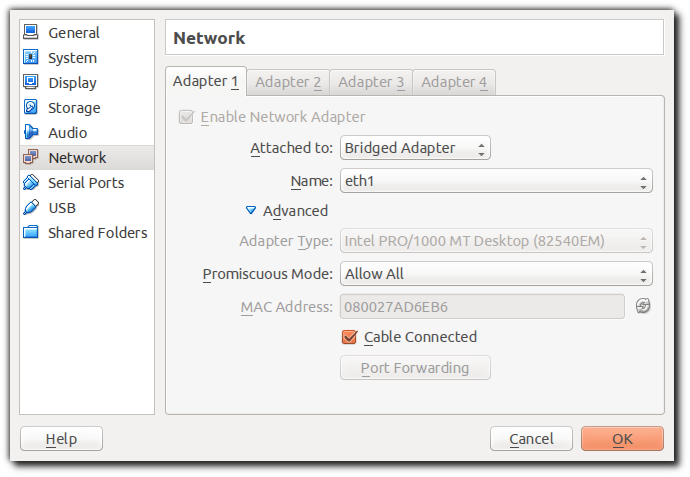
References
LXC Cheatsheet
Create Container
sudo lxc-create --template [TEMPLATE NAME] --name [CONTAINER NAME]Example:
sudo lxc-create --template ubuntu --name guest1
List Containers
sudo lxc-ls
Start A Container In Background (Daemon)
sudo lxc-start -d --name [CONTAINER NAME]
Attach To Container
sudo lxc-attach --name [CONTAINER NAME]
exit back out to the host with the "exit" command
Stop Container
sudo lxc-stop --name [CONTAINER NAME]
Clone Container
sudo lxc-clone [CONTAINER NAME] [NEW CONTAINER NAME]
Ubuntu - Setting Up KVM Hypervisor
This tutorial has been broken up into a multiple tutorials on my new blog site starting with the installation of KVM on Ubuntu.
Creating Virtual Block Devices
When playing with filesystems or setting up virtual machines, you may want to create virtual block devices (files that act similar to hard drives). Here I will explain the two ways to create such devices and the pros/cons of each
Normal Way
This is the normal way to create a block device and will create an 8 GiB pre-allocated device:dd if=/dev/zero of=/path/to/dir/filename.img bs=1M count=8192
You may want to change the block size (bs), and change the count in order to change the capacity of the device.
The count x bs = capacity, so reducing the block size would reduce your capacity if you did not adjust the count accordingly.
Advantages
- Better performance than with the "sparse" method
- Can't run out of space before the underlying device is full (dedicated).
Disadvantages
- This eats up your disk capacity very quickly. E.g. your disk is "full" after creating lots of these empty devices, and the majority of them may never reach half capacity.
- Slow to create (has to write the capacity's worth in 0's to the physical drive)
Sparse Image
Create a "sparse" image with the following example command which creates a 100GB devicedd if=/dev/zero of=/path/to/dir/filename.img bs=1k count=1 seek=100M
The 100M is NOT meant to be 100GB
Running an ls -alh will clearly show the file as being 100G in size, but running a df -h on / shows that it is not used.

Advantages
- Almost instantaneous creation
- Only data written to the image actually takes up space on your physical drive. Thus, you can oversell your physical drive.
Disadvantages
- Poorer performance when writing to.
- May not be able to write to the device before it's capacity is reached because the underlying device has been filled.
Centos 6.5 - Install OpenVZ
Introduction
OpenVZ has a couple of advantages over Xen. It has proved easier to set up the host so far and pretty quick to set up each virtual machine (no need to run an install process and worry about who/where/how the domU’s kernels are booting). The main advantage that I have read about so far is the ability to set allocated memory on openvz and not allow clients to spill out into swap space which kills disk IO for everyone else (which can happen in Xen). It is not a ‘true’ hypervisor (and thus cannot run windows), but has less overheads and is extremely fast and efficient.
Install Script
Copy and paste the following script into a file and execute it. Read all the output/echo statements if you want to know what it's doing.
#!/bin/bash

# BASH guard
if ! [ -n "$BASH_VERSION" ];then
    echo "this is not bash, calling self with bash....";
    SCRIPT=$(readlink -f "$0")
    /bin/bash $SCRIPT
    exit;
fi

clear
echo 'Installing OpenVZ...'

echo "updating..."
yum update -y

echo 'installing wget...'
yum install wget -y

echo 'Adding openvz Repo...'
cd /etc/yum.repos.d
wget http://download.openvz.org/openvz.repo
rpm --import http://download.openvz.org/RPM-GPG-Key-OpenVZ

echo 'Installing OpenVZ Kernel...'
yum install -y vzkernel

echo 'Installing additional tools...'
yum install vzctl vzquota ploop -y

echo 'Changing around some config files..'
sed -i 's/kernel.sysrq = 0/kernel.sysrq = 1/g' /etc/sysctl.conf

echo "Setting up packet forwarding..."
sed -i 's/net.ipv4.ip_forward = 0/net.ipv4.ip_forward = 1/g' /etc/sysctl.conf

# With vzctl 4.4 or newer there is no need to do manual configuration. Skip to #Tools_installation.
# source: http://openvz.org/Quick_installation
#echo 'net.ipv4.conf.default.proxy_arp = 0' >> /etc/sysctl.conf
#echo 'net.ipv4.conf.all.rp_filter = 1' >> /etc/sysctl.conf
#echo 'net.ipv4.conf.default.send_redirects = 1' >> /etc/sysctl.conf
#echo 'net.ipv4.conf.all.send_redirects = 0' >> /etc/sysctl.conf
#echo 'net.ipv4.icmp_echo_ignore_broadcasts=1' >> /etc/sysctl.conf
#echo 'net.ipv4.conf.default.forwarding=1' >> /etc/sysctl.conf


echo "Allowing multiple subnets to reside on the same network interface..."
sed -i 's/#NEIGHBOUR_DEVS=all/NEIGHBOUR_DEVS=all/g' /etc/vz/vz.conf
sed -i 's/NEIGHBOUR_DEVS=detect/NEIGHBOUR_DEVS=all/g' /etc/vz/vz.conf

echo "Setting container layout to default to ploop (VM in a file)..."
sed -i 's/#VE_LAYOUT=ploop/VE_LAYOUT=ploop/g' /etc/vz/vz.conf

echo "Setting Ubuntu 12.04 64bit to be the default template..."
sed -i 's/centos-6-x86/ubuntu-12.04-x86_64/g' /etc/vz/vz.conf

echo 'Purging your sys configs...'
sysctl -p

echo "Disabling selinux..."
sed -i 's/SELINUX=enforcing/SELINUX=disabled/g' /etc/sysconfig/selinux

echo "disabling iptables..."
/etc/init.d/iptables stop && chkconfig iptables off

clear

echo "OpenVZ Is now Installed. "
echo "Please reboot into the openvz kernel to start using it."
echo "Programster"
This script was last tested on the 15th August 2014
Start Your First Container
Create a virtual machine with a command like such (I build command in an sh file before running)
vzctl create $unique-id-for-vm \
--ostemplate $template-name-here \
--conf $configuration-name-here \
--ipadd $ip-address-of-vm \
--onboot yes \
--hostname $hostname-of-vm
Here is an example already filled out:
vzctl create 101 \
--ostemplate centos-6-x86_64 \
--conf basic \
--ipadd 192.168.1.43 \
--hostname centos1
OR
vzctl create 101 \
--ostemplate ubuntu-14.04-x86_64 \
--conf basic \
--ipadd 192.168.1.43 \
--hostname ubuntu1
The root password will be the same as the host machine unless you change it using passwd inside the machine, or by issuing the following command:
vzctl set {CTID} --userpasswd {user}:{password} --save
To start the virtual machine that you have created, run:
vzctl start
The machine could automatically connect to google dns (8.8.8.8) but had to manually set nameserver.
echo nameserver 8.8.8.8 > /etc/resolv.conf
Restart the network for the nameserver to take effect:
service network restart
References
Subscribe to:
Posts
(
Atom
)